

| |
|
Auto Updater is a Command Alkon application that securely downloads supported software packages and updates. Auto Updater downloads software directly to your PC so you do not have to manage CDs or USBs. After the download, you use Auto Updater to install the software at your convenience.
Auto Updater currently supports these software packages:
With Auto Updater, you always have access to the newest version of COMMANDbatch software, including software patches, bug fixes, and fixes for resolving or preventing unexpected Windows Update issues.
Auto Updater also downloads:
COMMANDbatch licenses support and recovery tools are downloaded so that they are available for troubleshooting.
 How does Auto Updater work?
Auto Updater has two components, a file server that stores product update files and installation packages and a client that runs on your PC.
The Auto Updater client checks for updates:
If updates are available, the files are downloaded to the \ProgramData\CAI\AutoUpdater\Downloads folder on the PC.
When downloads are complete, the client displays notification messages to let you know updates are available. You can install the updates at a time that is convenient for your production schedule.
Because a product update may take as many as 15 minutes and require a reboot, updates are not installed automatically to prevent disruptions to your production environment. The exception is Auto Updater, which does automatically install when an update is downloaded.
What are the software requirements?
Auto Updater requires .NET 4.6.1 or later.
Auto Updater must have write permission to the folder: \ProgramData\CAI\AutoUpdater\Downloads.
Auto Updater client must have access to the HTTPS port to communicate with the Auto Updater server.
What about security?
All updates from Command Alkon are digitally signed and secure.
Auto Updater Client/Server communication is over HTTPS and uses HTTPS encryption. Auto Updater server supports TLS 1.1 and TLS 1.2.
SSL inspection does not interfere with the packets.
How do I know Auto Updater is working?
A status indicator is located on the Auto Updater icon in the system tray to show when a client is connected to the server and if there are updates:
 - Client Connected (no indicator)
 - Client Disconnected (Red indicator)
 - Client Connected, updates available
How do I open Auto Updater on the PC?
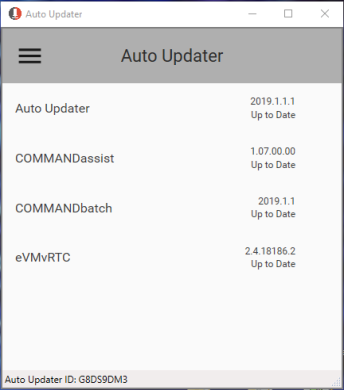
Select the Auto Updater icon in the system tray to open the Auto Updater client:
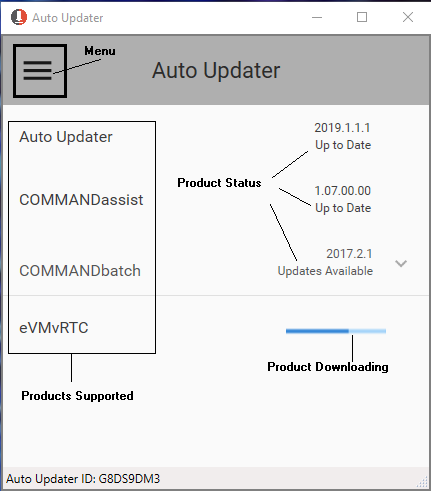
Software packages that are currently installed on the client PC are listed.
If a file is downloading, a progress bar shows the overall download progress.
Download Auto Updater client
To get the latest version of Auto Updater:
Select the Download button to install the Auto Updater client.
The file AutoUpdater<version number>_Production<date>.exe is downloaded to your default browser download location.
Install Auto Updater client
To install the downloaded Auto Updater client software:
Select Yes if you receive a UAC prompt asking if you want to allow a program to make changes to this computer.
Installation starts and the Auto Updater Installer window is displayed during installation:
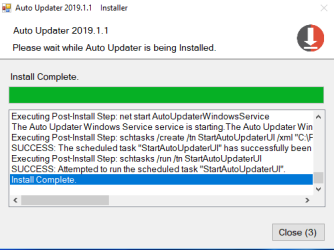
When installation is complete, the Auto Updater Installer window automatically closes after 10 seconds and the Auto Updater icon  is shown in the system tray.
How do I know if I have updates to install?
When an update is downloaded and ready to install:
Message is displayed above the task bar

The message is displayed until you either select the X to dismiss it or click anywhere in the message to open Auto Updater and view the available updates.
Green dot is shown on the Auto Updater icon

The green dot is displayed until you install the updates.
Select the Auto Updater icon  in the system tray to open the Auto Updater client:
The product update status is either:
Update Available - there are updates that have been downloaded but have not been installed yet.
If a product is downloading, a status bar is shown.
How do I install product updates with Auto Updater?
Only Command Alkon supported products can be installed with Auto Updater. License files and support tools are not installed with Auto Updater.
To install available updates for a product:
Select the down arrow to the right of “Updates Available” to expand the section to see the files downloaded.
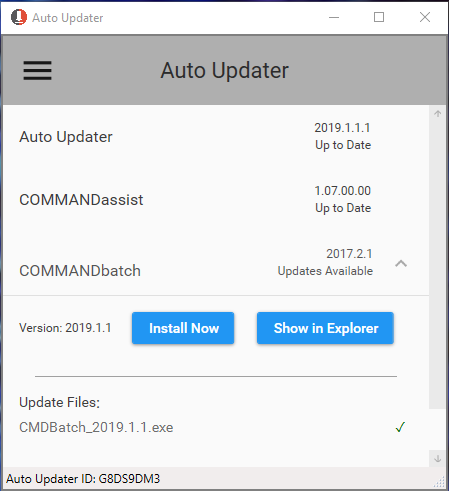
If you want to view the files before installing them, select Show in Explorer to view the files in File Explorer.
Select Install Now. A confirmation window is shown:
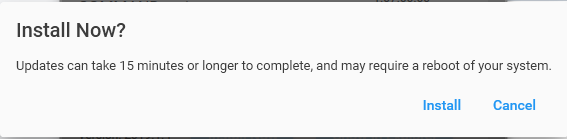
Select Install to install the software.
A progress bar is displayed while the installation is in progress.

When installation is complete, the product status changes to “Up to Date”.
Can I manually check for updates?
Auto Updater automatically checks for updates every 4 hours. If your system was shutdown or the network has been down and you want to check for software updates before the next automatic check:
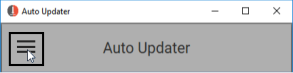
Select the Auto Updater menu:
Select Check for Updates:

Auto Updater client contacts the server and updates the product status.
What if Command Alkon Support asks me to install a support tool?
Auto Updater automatically downloads files for the current versions of Command Alkon Support tools. These tools are not installed, but the software is downloaded in case you need to use the tools for troubleshooting a supported product. Command Alkon Support may instruct you to access and install these tools to assist with troubleshooting.
To access the support tool files:
Select the Auto Updater menu:
Select Support Files from the menu.
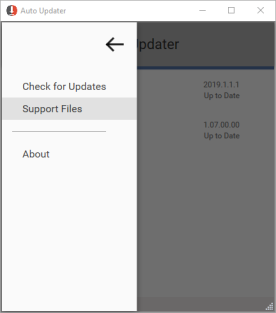
A File Explorer window opens to the support files folder: C:\ProgramData\CAI\AutoUpdater\Downloads\Support Files
My Auto Updater status indicator is red
The Auto Updater status indicator is red whenever the Auto Updater client is not connected to the Command Alkon update server.
What to do:
Navigate to https://update.commandalkon.com. If you cannot access the page, contact your administrator to: